
Before you start
- We migrated all existing customer accounts to the new Send portal on 9 October 2026.
- If you had an account with us before this date, there’s a small change to how you’ll sign in. The first time you log in, we’ll ask you to reset your password. This is a one-time step to help keep your account secure and ensure you’re set up with our latest security protections.
- To make signing in more consistent and secure, social logins such as Google and Facebook are no longer supported. You’ll now sign in using your email address and password instead. If you previously used a social login, simply use the same email address associated with your account and follow the prompts to set or reset your password.
- We’ve introduced Multi-Factor Authentication (MFA) to provide an additional layer of protection for your account. MFA helps keep your account and funds secure by requiring an extra verification step when you sign in, reducing the risk of unauthorised access even if your password is compromised.
- Send is a web-based platform, so you can log in from a mobile, tablet, or desktop. You just need a stable internet connection and an up-to-date browser.
How to troubleshoot log in errors
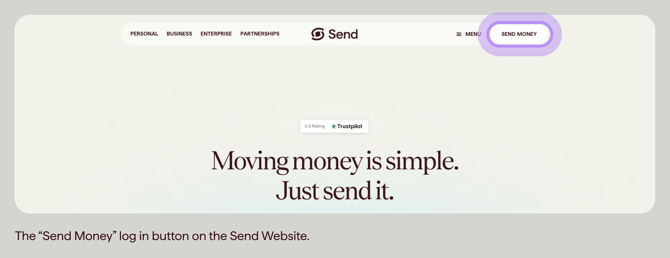
Step 1: Go to the Send sign-in page
- Visit the Send website https://sendpayments.com/.
- Select Send money in the top right corner.
- Select Log in.
Step 2: Try signing in with your email and password
- Enter the same email address you signed up with.
- Enter your password and select Log in. Make sure Caps Lock is off - passwords are case sensitive.
If this works, skip to Step 5 to set up MFA.
If you can't log in (or you used a social login before, like Google or Facebook), continue to Step 3.
Step 3: Reset your password
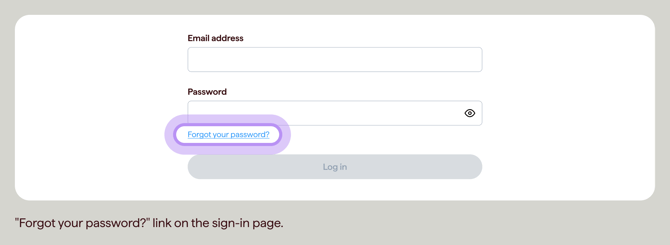
- On the sign-in page, select Forgot your password?
- Enter the email address you signed up with.
- Check your email for a 6-digit one-time code from Send.
- Enter the code and create a new password.
Your new password must be at least 8 characters and include:
- an uppercase letter
- a number
- a symbol
For a full walkthrough, see How to update or reset your password.
Can't find the email?
- Wait up to 5 minutes for the email to arrive.
- Check your spam or junk folder.
- Make sure you entered the correct email address.
Step 4: Sign in with your new password
Go back to the sign-in page and log in using your email and your new password.
Step 5: Set up multi-factor authentication (MFA)
The first time you sign in, you will be asked to set up MFA. This adds an extra layer of security to your account and is mandatory before you can access your dashboard.
- Download an authenticator app on your phone if you don't already have one. We recommend Google Authenticator.
- Follow the on-screen instructions to link the app to your Send account.
- Enter the 6-digit code from your authenticator app to confirm setup.
For more details, see Setting Up Multi-Factor Authentication for Your Send Account: A Step-by-Step Guide, How do I log in with MFA?, and MFA FAQs.
Step 6: You're logged in
Once MFA is set up, you'll land on your dashboard. You may see a short "what's new" tour, which you can dismiss or follow at your own pace.
What happens next- You should now be able to sign in with your email, password, and a code from your authenticator app each time you log in.
- You do not need to do anything else to activate your account.
- If you forget your password again, you can use Forgot your password? at any time. See How to update or reset your password for a full walkthrough.
- If you lose access to your authenticator app, see What if I lose access to my MFA method? or contact our support team.
Common questions
I've already updated my password - why can't I log in?
If this is your first time logging in since the migration, the issue is most likely that you need to reset your password - social logins from the old portal are no longer supported. Follow Step 3 above to reset your password.
If you've already reset your password and signed in successfully before, try these quick checks:
- Double-check your email is spelt correctly. Common typos include ".co" instead of ".com", or "gmial" instead of "gmail".
- Check for extra spaces at the start or end of your email or password.
- Make sure Caps Lock is off - passwords are case sensitive.
- Try typing your password manually instead of letting your browser autofill it. Saved passwords may be out of date after the migration.
- Check that your internet connection is stable.
- If you're on a work device, check that your workplace is not blocking the Send website.
- If you still can't log in, select Forgot your password? and follow Step 3 above to reset it. You can also see How to update or reset your password.
My browser is auto-filling the wrong password
If you've recently reset your password, your browser or password manager may still be filling in your old one.
- Clear the saved password for Send in your browser or password manager.
- Try typing your new password manually.
- Then update your saved password to the new one so your browser remembers it next time.
I used Google or Facebook to sign in before - where is that button?
Social sign-in is no longer available on Send. Everyone now signs in with an email address and password.
- Use the email address that was linked to your old account.
- Follow Step 3 above to reset your password, or see How to update or reset your password.
I didn't get the password reset email
- Wait up to 5 minutes. Emails can take a short time to arrive.
- Check your spam or junk folder.
- Make sure you entered the exact email you signed up with.
- If it still hasn't arrived, contact our support team and we can send a reset link directly to you.
I'm not sure which email I signed up with
- Search your inbox for past emails from info@sendpayments.com or Send.
- Check any email account you may have used when you first signed up.
- If you still can't work it out, contact our support team and we can help you confirm the email on file.
I've tried a few times and now I can't log in at all
Please be careful - too many login attempts may result in your account being temporarily locked for security reasons.
- Stop trying to log in and contact our support team.
- We can usually sort out password and login issues in just a few minutes.
The page won't load or keeps spinning
- Check your internet connection.
- Refresh the page.
- Try a different browser (such as Chrome, Safari, Firefox, or Edge), or open the sign-in page in a private/incognito window.
- Clear your browser cache and cookies, then try again.
- Make sure your browser is up to date.
I'm being asked to set up MFA and I don't want to
MFA is mandatory on Send to help keep your account secure. You will not be able to access your dashboard without it. Any authenticator app will work. See MFA FAQs for more help.
My authenticator code isn't working
- Authenticator codes refresh every 30 seconds. Wait for a new code and try again.
- Make sure your phone's date and time are set to automatic. If the clock is wrong, your codes won't match.
- Check you're using the right account in your authenticator app, especially if you have more than one account set up.
- If it still won't work, see How do I log in with MFA? or contact our support team.
I've lost my phone or can't open my authenticator app
Contact our support team and we'll help you restore access. See What if I lose access to my MFA method? for more details.
I've tried everything and I still can't log in
Please contact our support team. We can look at your account, give you advice specific to your situation, and walk you through your options (including re-registering a new account if that's the best path for you).
Contact us
Call Us
Phone: 1800 982 418
International: +61 7 5619 5700
Hours: 8:30am - 5:30pm AEST/AEDT, Monday - Friday