
Keep your setup details private
Do not share your QR code, setup key, password, or one-time code with anyone.
Anyone with access to your QR code or setup key may be able to generate login codes for your account.
Before you start
- You'll need a smartphone or tablet to install an authenticator app.
- We recommend Google Authenticator, but any authenticator app will work (for example, Microsoft Authenticator, Authy, or 1Password).
- MFA setup is required for all Send customers. You'll be prompted to set it up the first time you log in before you can access your account.
Step 1: Start the MFA setup
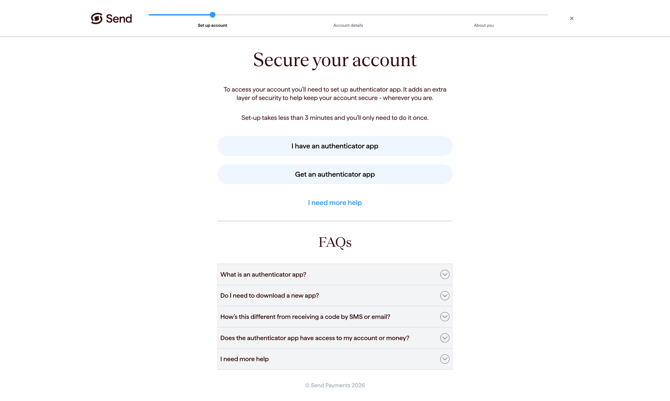
When you log in for the first time, you'll see a screen asking you to set up multi-factor authentication.
You'll be asked if you already have an authenticator app installed:
- Yes - skip ahead to Step 3.
- No - continue to Step 2.
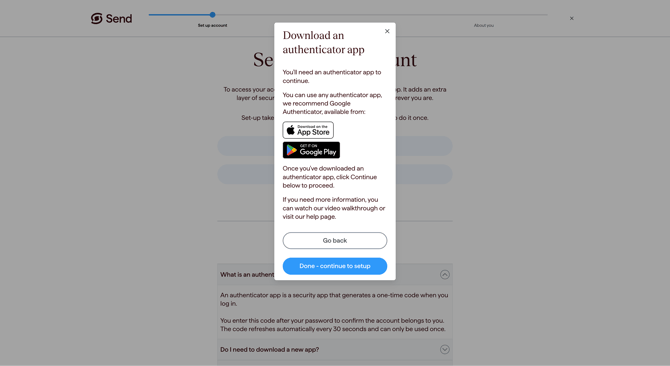
Step 2: Download an authenticator app
On your smartphone or tablet, open your app store and download an authenticator app. We recommend Google Authenticator, but any authenticator app will do.
Once installed, open the app and return to your Send screen.
Step 3: Link your Send account to your authenticator app
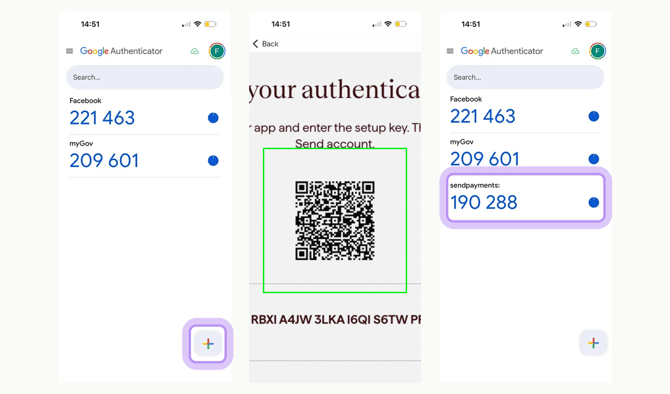
How you link your account depends on the device you're using to log in to Send:
If you're on a desktop or laptop:
- Open the authenticator app on your phone.
- Tap the option to add a new account (this is usually a "+" icon).
- Choose to scan a QR code.
- Point your phone's camera at the QR code shown on your Send screen.
If you're on a mobile device:
- On your Send screen, copy the setup key.
- Open your authenticator app.
- Tap the option to add a new account and choose to enter a setup key manually.
- Paste the setup key into the authenticator app.
Step 4: Enter your one-time code
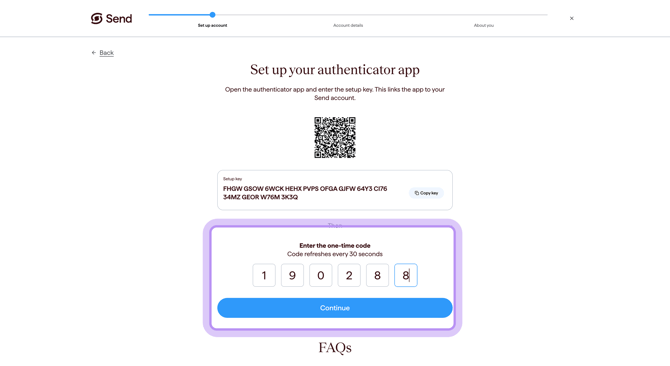
Once your accounts are linked, your authenticator app will show a 6-digit code for your Send account. This code refreshes regularly, usually every 30 seconds.
- Enter the 6-digit code into your Send screen.
- Click Continue.
If the code doesn't work, it may have expired. Wait for a new code to appear in your authenticator app, then try again.
What happens next
- Once your code is accepted, your authenticator app will be linked to your Send account.
- You'll be taken straight to your dashboard and you'll see a confirmation banner letting you know your setup was successful.
- From now on, you'll use your authenticator app to generate a code each time you log in.
Common questions
The QR code won't scan
- Make sure your phone's camera lens is clean and that there's enough light.
- Try moving your phone closer to or further from the screen.
- If it still won't scan, you can usually choose "Enter a setup key" in your authenticator app instead, and type in the key shown on your Send screen.
My code says it's invalid or has expired
- Each code is only valid for 30 seconds. If the timer is almost out, wait for the next code.
- Make sure your phone's date and time are set to automatic. If your phone's clock is out of sync, your codes won't match.
- Double-check you're using the code for your Send account, not another account in your authenticator app.
I've been locked out after too many tries
- For your security, your account may be temporarily locked if you enter the wrong code too many times.
- Please contact our support team (details below) and we'll help you get back in.
I already use an authenticator app for other accounts
- That's fine - you can add your Send account to the same app. Your existing accounts won't be affected.
I lost my phone or changed devices
- If you no longer have access to your authenticator app, please contact our support team using the details below and we'll help you reset MFA on a new device.
Contact us
Call Us
Phone: 1800 982 418
International: +61 7 5619 5700
Hours: 8:30am - 5:30pm AEST/AEDT, Monday - Friday