
Before you start
- You'll need to be logged in to your Send account on web, tablet, or mobile.
What is a task?
A task is a quick request from us for one piece of information or a document. We only collect one piece of information per task, so if we need more than one thing, you may see more than one task.
A task may be linked to:
- Your account (for example, when activating it)
- A recipient you've added
- A payment you're making
- Money coming into your wallet
Why do we ask for this information?
We may ask for additional information or documents to meet our legal and compliance obligations, and to review certain account or transaction activity where required.
You can read more about how Send handles personal information in our Privacy Policy.
How will I know I have a task?
We'll let you know in three ways:
- Email: You'll receive an email that says, "There's a quick task waiting in your account. Once it's done, we'll be able to move things along." If you have more than one outstanding task, we group these into one email per hour so you're not spammed.
- Banner alert in your portal: A pink-orange banner with an exclamation icon will appear, with a "View tasks" link.
- Tasks counter: In the left navigation, the "Tasks" menu item will show a small badge with the number of tasks you have outstanding.
The banner will appear on the page that relates to the task:
- Account tasks - on the Dashboard
- Recipient tasks - on the Dashboard, the Recipients home, and the recipient's page
- Pay in tasks - on the Wallet page
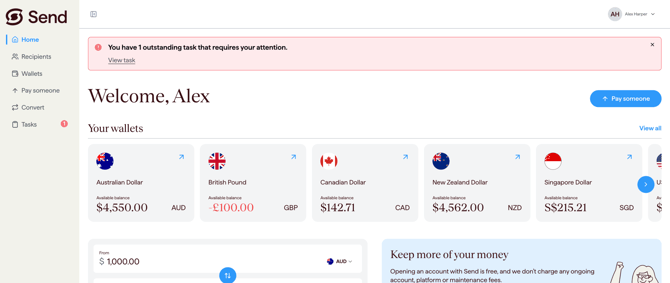
Step 1: Open your tasks
- On desktop or tablet: click "Tasks" in the left navigation, or click "View tasks" on the alert banner.
- On mobile: tap "View tasks" on the alert banner.
You'll see two tabs:
- To do: tasks waiting for you to submit.
- In review: tasks you've already submitted that are with our team.
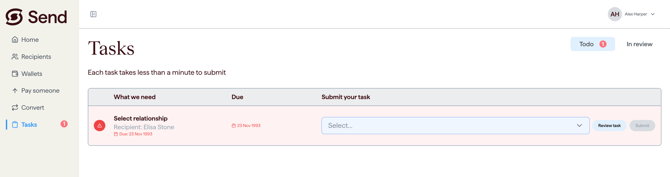
Step 2: Complete your task
Most tasks take less than a minute if you have the information ready. Depending on the task, you may need to:
- Upload a document
- Type an answer in a free-form text field
- Pick an option from a list
- Select a date
The task screen will guide you on what's needed.
You have two ways to submit:
- From the Tasks home page (desktop and tablet only): add the information directly into the "Submit your task" column, then click "Submit".
- From the task page: click into a task to see the full details and submit your response.
If the task is asking for information about your recipient, click "Ask recipient" on the task page to copy a pre-written message you can send to them. This explains exactly what we need and why.
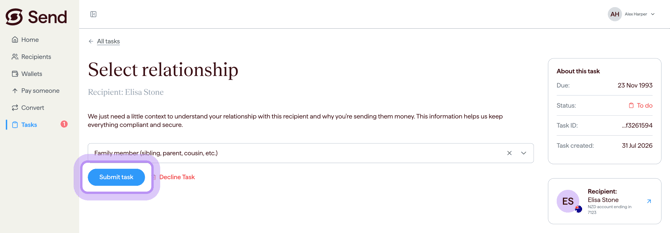
What happens next
- Once you submit, the task moves to the "In review" tab so our team can review it.
- We aim to review tasks within one business day. Some reviews may take longer if we need to complete additional checks.
- If your submission is approved, you'll receive an email confirming the task is complete and the related action will move forward.
- If your submission can't be approved (for example, the document is unreadable), we'll let you know by email. We may then create a new task asking you to resubmit the information or provide something different.
- If we need more information after we've reviewed your task, a new task will appear in your portal, a new banner will show, and you'll receive a new email.
What happens if I don't complete a task?
If you don't complete a task, the related action may be delayed or may not be able to proceed until the requested information is provided. For example, your account setup, a recipient approval, or a transaction may not be able to move forward.
Common questions
Why do you need this information when I've already provided it?
- We may need to verify or refresh certain details to meet legal or compliance obligations.
- If something doesn't look right, contact our support team and we'll help you understand what information is required.
I uploaded the wrong document, can I change it?
- Once a task has been submitted, it can't be edited.
- Contact our support team. If your task is rejected, we'll create a new task so you can upload the correct document.
I can't find my task
- Check the "Tasks" page in the left navigation. Make sure you're on the "To do" tab.
- Tasks you've already submitted appear under "In review".
- Once a task has been actioned, it will no longer be visible in your portal.
I need to get this information from my recipient
- Open the task and click "Ask recipient" to copy a message that explains exactly what we need.
- Send the message to your recipient. Once they share the details, come back and complete the task.
- For more help, see I need information from my recipient to complete a task.
Contact us
Call Us
Phone: 1800 982 418
International: +61 7 5619 5700
Hours: 8:30am - 5:30pm AEST/AEDT, Monday - Friday