
Before you start
- You'll need a Send account.
- You'll need your recipient's CUIL number ready before you start adding them.
- Send will only ask for this when:
- You're adding an individual recipient (not a business), and
- The recipient's country is Argentina, and
- You're sending in Argentine pesos (ARS).
What is a CUIL number?
- CUIL stands for Código Único de Identificación Laboral.
- It's an 11-digit tax identification number assigned to individuals in Argentina.
- When you reach this step, the Send screen will show you the format and length required for the field.
Why we ask for it
We ask for the CUIL to support our verification and compliance processes. You'll need to enter the required CUIL information to continue adding the recipient.
Where to get the number
Your recipient is the best person to provide this number. If they aren't sure where to find it, common sources include:
- The ANSES (Administración Nacional de la Seguridad Social) website or app
- Their DNI (national ID) card
- Their employment or tax records
Steps to adding a recipient with a CUIL
Step 1: Open the Add recipient screen
- Log in to your Send account.
- Go to the Recipients page.
- Select Add recipient.
- Choose Individual as the recipient type.
- Select Argentina as the recipient's country.
- Select Argentine peso (ARS) as the currency.
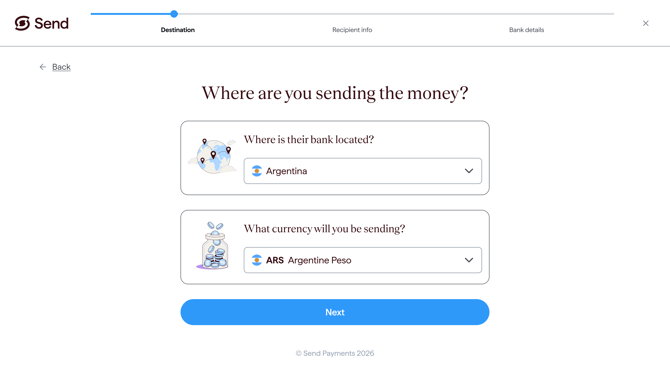
Step 2: Enter the CUIL number
- In the CUIL field, type your recipient's 11-digit CUIL number.
- Enter the digits only. Do not include spaces or dashes.
- Follow any guidance shown in the field about the required format.
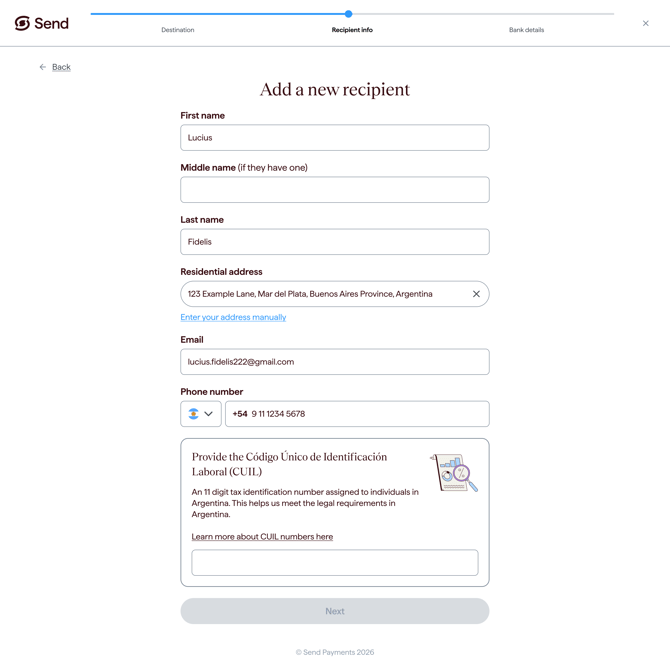
Step 3: Continue adding the recipient
- Once the number is entered, continue with the rest of the recipient details.
- Review the information before you save.
What happens next
- If the information entered is not accepted, check the number with your recipient and try again.
- Once you save the recipient, we'll review their details. You'll be able to make a payment to them once they've been approved. For more information, see How long does it take to verify my recipient?
- If we need to confirm any details, we may contact you for more information. Common issues
Common questions
I don't know my recipient's CUIL
- Only the recipient (or someone they trust) will have this information. We can't look it up for you.
- Ask your recipient to check the ANSES website or app, their DNI card, or their employment or tax records.
The form won't accept the number I entered
- Remove any spaces or dashes. Only the 11 digits should be entered.
- Check that the number matches the format guidance shown in the field.
- Double-check the number with your recipient.
I can't continue adding my recipient without it
- You'll need to enter the required CUIL information before you can continue.
- If you don't have it yet, come back once your recipient has shared it with you.
My recipient doesn't have a CUIL, or doesn't want to share it
The required identification number must be provided before you can finish adding the recipient. Contact our support team if you believe the field does not apply to your recipient.
Why do you ask for this?
We may ask for this information to help identify the recipient, meet local payment requirements and support our compliance checks.Contact us
Call Us
Phone: 1800 982 418
International: +61 7 5619 5700
Hours: 8:30am - 5:30pm AEST/AEDT, Monday - Friday