
This article shows you how to change your password. The steps are slightly different depending on whether you're already logged in or you've forgotten your password. The Send portal works in your web browser on desktop, tablet, and mobile.
Before you start
- You'll need access to the email address linked to your Send account.
- Have your phone nearby so you can open your authenticator app and get a 6-digit code.
- Your new password must include:\n
- At least 8 characters
- At least 1 uppercase letter
- At least 1 number
- At least 1 special character (for example: ! @ # $)
You'll see a live checklist on screen as you type, so you can tick each rule off as you go.
Keep your verification codes private. Only enter your one-time codes in the Send portal. Do not share your email one-time code or your authenticator app code with anyone, including someone who says they are from Send.
Steps: If you've forgotten your password
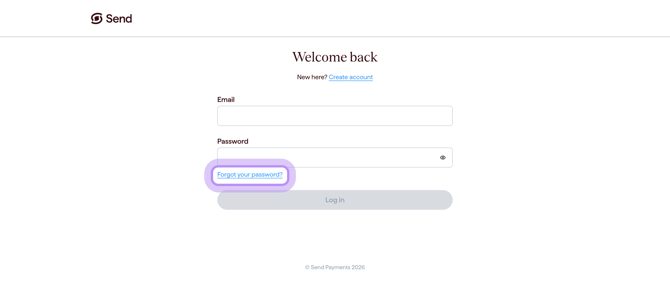
Step 1: Select "Forgot your password?"
On the log in screen, select Forgot your password?
Step 2: Enter your email address
Enter the email address linked to your Send account, then select Next.
We'll send a one-time code to that email address. The code will only work if the email is registered to a Send account.
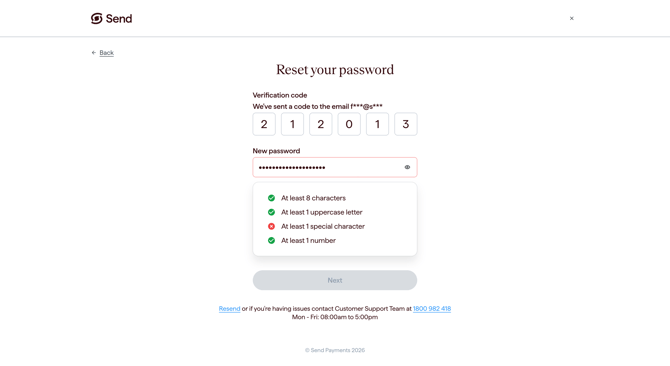
Step 3: Enter the one-time code and create your new password
Open the email from Send and copy the 6-digit code.
Back on the password reset screen:
- Enter the one-time code from your email.
- Enter your new password.
As you type, the on-screen checklist will tick off each rule you've met. Once all four rules are ticked, your password meets our requirements.
Select Next to continue.
If you change your mind, you can select the Back button to return to the previous screen, or close the screen to cancel.
Step 4: Verify it's you with your authenticator app
Open your authenticator app and enter the 6-digit code shown for your Send account.
Once the code is accepted, you'll be logged in with your new password.
Step 5: Check your inbox for confirmation
You'll receive an email confirming your password has been changed. If you did not request this change, contact Send immediately using our official support details below. For your security, we may need to verify your identity before taking action on your account.
Steps: If you're already logged in
Step 1: Open your Account information
From anywhere in the Send portal, open the Account information menu.
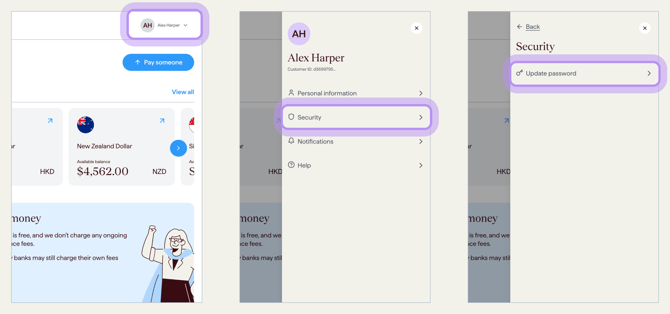
Step 2: Go to Security
Select Security from the menu.
Step 3: Select "Update password"
You'll see a message letting you know that you'll be logged out so your password can be updated securely. Select Continue and log out to keep going.
Step 4: Confirm your email address
You'll be taken to a screen with your email address already filled in. This is the same screen we use for the "Forgot your password?" flow, so the field can be edited if needed.
Check the email shown is the one linked to the Send account you want to update, then select Next.
We'll send a one-time code to that email address. The code will only work if the email is registered to a Send account.
Step 5: Enter the one-time code and create your new password
Open the email from Send and copy the 6-digit code.
- Enter the one-time code from your email.
- Enter your new password.
As you type, the on-screen checklist will tick off each rule you've met. Once all four rules are ticked, your password meets our requirements.
Select Next to continue.
If you change your mind, you can select the Back button to return to the previous screen, or close the screen to cancel.
Step 6: Verify it's you with your authenticator app
Open your authenticator app and enter the 6-digit code shown for your Send account.
Once the code is accepted, you'll be logged in with your new password.
Step 7: Check your inbox for confirmation
You'll receive an email confirming your password has been changed. If you did not request this change, contact Send immediately using our official support details below. For your security, we may need to verify your identity before taking action on your account.
What happens next
- Your new password takes effect straight away.
- You'll get a confirmation email letting you know your password has been changed.
- You can log in with your new password from any device using the Send portal in your web browser. The portal is responsive and works on desktop, tablet, and mobile.
- If you notice any activity you don't recognise, contact us immediately using the official support details below.
Common questions
I got an error saying my password couldn't be reset
If you see a message that says we couldn't reset your password, this usually means the email address you entered doesn't match an active Send account.
- Check you've entered the email address you originally signed up with, and try again.
- If the issue keeps happening, contact our support team using the official details below.
I don't have access to my authenticator app anymore
This can happen if you've lost your phone, switched to a new one, or removed the authenticator app.
- For security reasons, we can't complete authenticator app access changes through unsecured or unverified channels.
- If you no longer have access to your authenticator app, contact our support team using the official details below. We may need to verify your identity before helping you regain access.
My 6-digit code isn't working
- Codes from authenticator apps refresh every 30 seconds. If your code has just expired, wait for the next one and try again.
- Make sure you're using the code for your Send account (not another service in the same app).
- If your code was sent by email, check your spam or junk folder. Codes can sometimes take a minute or two to arrive.
My new password keeps getting rejected
- Check the live checklist on screen. Every rule needs a tick before the password is accepted.
- Make sure you've included at least 8 characters, one uppercase letter, one number, and one special character.
- Try avoiding spaces at the start or end of your password.
- Make sure you’re using a new password. For security reasons, previously used passwords cannot be reused.
I've been logged out and can't get back in
If you've tried to reset your password a few times and you're now locked out, contact our support team for help regaining access and to review any security concerns.
- Please contact our support team using the official details below. For your security, we may need to verify your identity before helping you regain access.
I didn't request a password change but I got an email
If you receive a password change confirmation email and it wasn't you, contact Send immediately using our official support details below. For your security, we may need to verify your identity before taking action on your account. You can also read What to do if someone gets access to or hacks my account for more guidance.
Contact us
Call Us
Phone: 1800 982 418
International: +61 7 5619 5700
Hours: 8:30am - 5:30pm AEST/AEDT, Monday - Friday