
Before you start
- You'll need to be logged in to your Send account. Your account also needs to be active - you can't update your phone number while you're still going through onboarding.
- Have access to your registered email inbox. We'll send a 6-digit verification code there.
- Your new phone number must be:
- A mobile number (we don't accept landlines)
- One you can be reached on
How to update your phone number
Step 1: Open your account menu
- On desktop or tablet: select your account name in the top right of the screen.
- On mobile: select the More icon (three vertical dots).
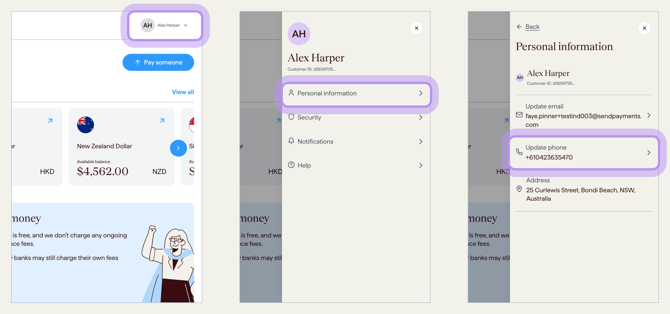
Step 2: Go to your information page
Select Personal information (for individual accounts) or Business information (for business accounts).
Step 3: Select Update phone
On the information page, select Update phone next to your phone number.
Step 4: Verify it's you
We'll send a 6-digit verification code to your registered email address. Open your inbox, copy the code, and enter it on screen.
- Can't find the email? Check your spam or junk folder.
- If the code hasn't arrived after a minute or two, select Resend code to get a new one.
Note: We'll never send the code via SMS - it always comes by email.
Step 5: Enter your new mobile number
- Use the country picker to select the country your number is registered in.
- Enter your mobile number without the country code - the country picker handles that for you.
- Double-check the number before confirming.
Select Next to save the change.
What happens next
- After you save the change, we'll send a confirmation email to your registered email address.
- Your password, email, authenticator app, and other account details stay the same. Only your phone number has changed.
- If you need help after the change, contact support using the details below.
Common questions
My verification code hasn't arrived
- Check your spam or junk folder. Codes can sometimes be filtered there.
- Wait a minute or two - emails can take a moment to come through.
- Select Resend code on screen to get a new one.
- Make sure you're checking the inbox for the email registered to your Send account.
My code keeps getting rejected
- Make sure you're using the most recent code. If you've requested a new code, the previous one may no longer work.
- Codes are 6 digits - check you haven't missed a number when copying.
- If it still won't work, select Resend code and try again.
I've been locked out after too many tries
If you've been locked out after too many attempts, contact support. Our team will help you regain access, which may require verification checks.
My new number isn't being accepted
- Make sure you've selected the correct country in the country picker.
- Enter the number without the country code - the picker adds that automatically.
- Only mobile numbers are accepted (landlines won't work).
- Your new number must be different from your current one.
I didn't request this update
If you receive a confirmation email about a phone number change you didn't make, please contact our support team straight away using the details below. Our team will look into it with you, and any next steps may require verification checks.
To help protect your account in the meantime:
- Change your password if you can still log in.
- Do not share your verification codes with anyone, including people who claim to be from Send.
Contact us
Call Us
Phone: 1800 982 418
International: +61 7 5619 5700
Hours: 8:30am - 5:30pm AEST/AEDT, Monday - Friday