
Before you start
- You'll need to be logged in to your Send account. Your account also needs to be fully active. You can't update your email while you're still going through onboarding.
- Have access to both your current email and your new email. We'll send a 6-digit verification code to each.
- Your new email must be different from your current email.
- Make sure your new email is one you'll keep using long-term.
Step 1: Open your account menu
- On desktop or tablet: select your account name in the top right of the screen.
- On mobile: open the menu icon (the three lines in the top corner).
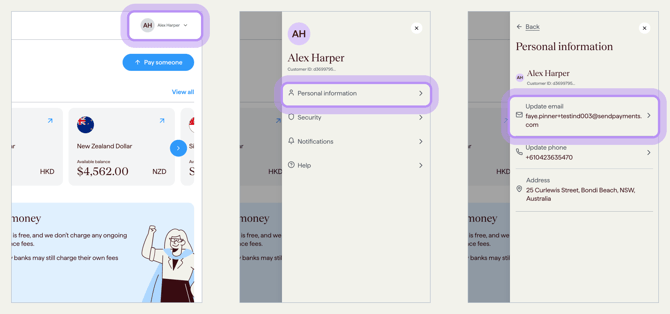
Step 2: Go to your information page
Select Personal information (for individual accounts) or Business information (for business accounts).
Step 3: Select "Update email"
On the information page, select Update email next to your email address.
Step 4: Verify your current email
For your security, we first need to confirm it's really you. We'll send a 6-digit verification code to your current email address. Open your inbox, copy the code, and enter it on screen.
- Can't find the email? Check your spam or junk folder.
- If the code hasn't arrived after a minute or two, select Resend code to get a new one.
Step 5: Enter your new email
Type in the email address you'd like to use from now on. Double-check it carefully. You'll need access to this inbox to complete the change and to log in afterwards.
Select Next to continue.
Step 6: Verify your new email
We'll send a 6-digit verification code to your new email address. Open that inbox, copy the code, and enter it on screen.
- If the code doesn't arrive, select Resend code.
- Make sure you've typed your new email correctly. If there's a typo, the code won't arrive.
Step 7: Log in with your new email
Once both verification steps are complete, your email change will be processed in the portal. The next time you log in, use your new email address with your existing password.
What happens next
- Once both verification steps are complete, your email change will be processed in the portal.
- The next time you log in, use your new email address.
- Your password and authenticator app stay the same. Only your email address has changed.
If you didn't request this change
If you receive a verification code or a notice about an email change you did not request, do not continue. Contact support immediately. We may need to verify your identity before discussing or making any changes to your account.
Common questions
My verification code hasn't arrived
- Check your spam or junk folder. Codes can sometimes be filtered there.
- Wait a minute or two. Emails can take a moment to come through.
- Select Resend code on screen to get a new one.
- If you're verifying your new email, double-check there are no typos in the address you entered.
My code keeps getting rejected
- Make sure you're using the most recent code. Older codes stop working once a new one is sent.
- Codes are 6 digits. Check you haven't missed a number when copying.
- If it still won't work, select Resend code and try again.
I've been locked out after too many tries
After too many incorrect attempts, we'll temporarily lock the email update for security reasons. Please contact support for help.
If you're also having trouble logging in, see How to update or reset your password.
I no longer have access to my current email
If you no longer have access to your current email, you won't be able to update it yourself in the portal.
- Please contact support. We'll need to verify your identity before any account change can be considered. If we can't verify your identity, we won't be able to proceed.
I'm still being onboarded. Can I update my email?
Not through the portal yet. You'll need to either finish onboarding first, or contact support for help.
Can I use the same email I used before?
No, your new email must be different from the one currently on your account.
Will my password or login change?
No. Only your email address changes. Your password and authenticator app stay the same. You'll just use your new email the next time you log in.
I'm a business user. Can I update my own email?
For business accounts, the steps and permissions may vary depending on your user role. If you can't see the option to update your email, contact support.
Contact us
Call Us
Phone: 1800 982 418
International: +61 7 5619 5700
Hours: 8:30am - 5:30pm AEST/AEDT, Monday - Friday