
Before you start
- You'll need to be logged in to your Send account on web, tablet, or mobile.
- Have your file ready on the device you're using.
- Make sure you have a stable internet connection.
Step 1: Open the task that needs a document
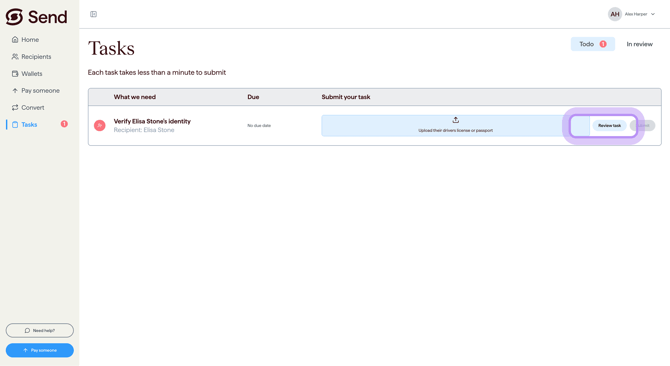
- Go to the Tasks page in the left navigation, or click View tasks on the alert banner.
- On the To do tab, click into the task you want to complete.
- The upload button label changes depending on what we're asking for. For example: Upload their drivers license or passport, Upload proof of payment, or Upload invoice.
Step 2: Add your file
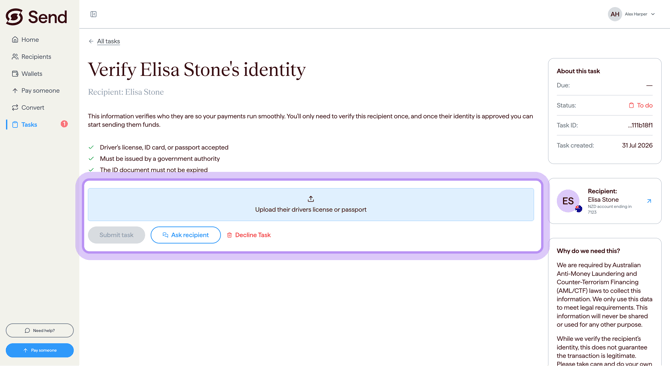
You can add your file in two ways:
- Drag and drop the file from your device straight into the upload area, or
- Click the upload area to open a file picker, then select your file.
You can upload more than one file to the same task if needed.
Step 3: Check it's the right file, then submit
- Make sure the file you've added is the correct one and is clear and readable.
- Click Submit to send it to our team.
Accepted file types and sizes
File types we accept:
- Photos and scans: JPEG, JPG, PNG, BMP, WEBP
- Documents: PDF, DOC, DOCX
- Spreadsheets: XLS, XLSX, CSV
Maximum file size: 100MB per file.
If your file is over 100MB, you'll need to upload a smaller file.
What happens next
- Once you click Submit, the task moves to the In review tab so our team can review it.
- You'll receive an email when the review is complete.
- For full details on what happens after a task is submitted, see "What's a task and why do we ask for this information".
Common questions
My file is too large
- If you're taking a photo on your phone, lower the photo resolution in your camera settings before taking the photo.
- If the file is a long document, split it into smaller files and upload them one at a time.
- If you're still stuck, contact our support team.
My file type isn't accepted
- Check the list of accepted file types above.
- If your file is in a different format, save or export it as one of the accepted file types (for example, PDF or JPEG), then upload the new file.
- If your file is inside a ZIP archive, unzip it first and upload the files inside one at a time.
- If you're not sure how to convert your file, contact our support team.
My photo of the document is blurry, cut off, or has glare
- Place the document on a flat, plain surface in good light.
- Make sure all four corners of the document are inside the photo.
- Avoid using the flash, as this can cause glare. Try natural light instead.
- Hold your phone steady and tap the screen to focus before taking the photo.
My PDF is password-protected
- We can't open password-protected files, so the upload won't be accepted.
- If you have a copy of the document that isn't password-protected, please upload that one instead.
- If you don't, contact our support team and we'll let you know what to do next.
My upload keeps failing or stops partway
- Check your internet connection. If it's unstable, switch to a different network (for example, from mobile data to Wi-Fi) and try again.
- Make sure your file isn't above the 100MB limit.
- Close and reopen the task, then try the upload again.
The upload area isn't working in my browser
- Refresh the page and try again.
- Try a different browser or or update your current browser to the latest version.
- If the problem continues, contact our support team.
I'm uploading from my phone - should I use the camera or my photo library?
- Camera: Best for documents you have in front of you right now (like a paper invoice). Make sure the photo is clear before uploading.
- Photo library: Best when you've already taken or saved the photo, or when someone has sent it to you.
- Either option works - choose whichever is easier.
I uploaded the wrong file
- Once a task has been submitted, it can't be edited. See "What's a task and why do we ask for this information" for what to do next.
Related articles
- What's a task and why do we ask for this information
- How to submit a task
- I need information from my recipient to complete a task
Contact us
Call Us
Phone: 1800 982 418
International: +61 7 5619 5700
Hours: 8:30am - 5:30pm AEST/AEDT, Monday - Friday